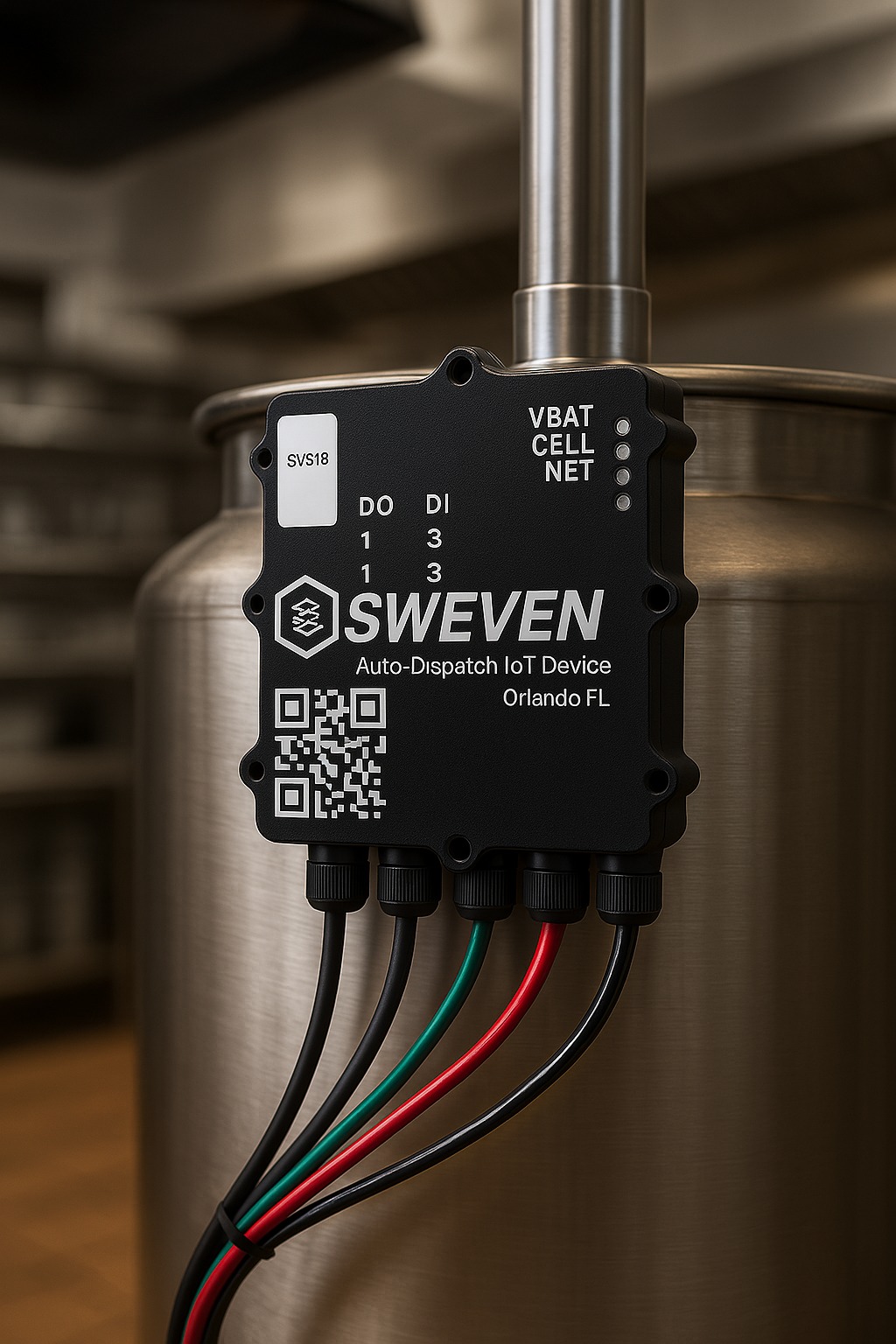
Follow these steps (no tools required):
- Check the cable connections.
- Make sure the antenna cable has the outer nut secured. If it isn’t, tighten it.
- Make sure the charger that supplies power is properly connected.
- Make sure the alarm cable is properly secured.
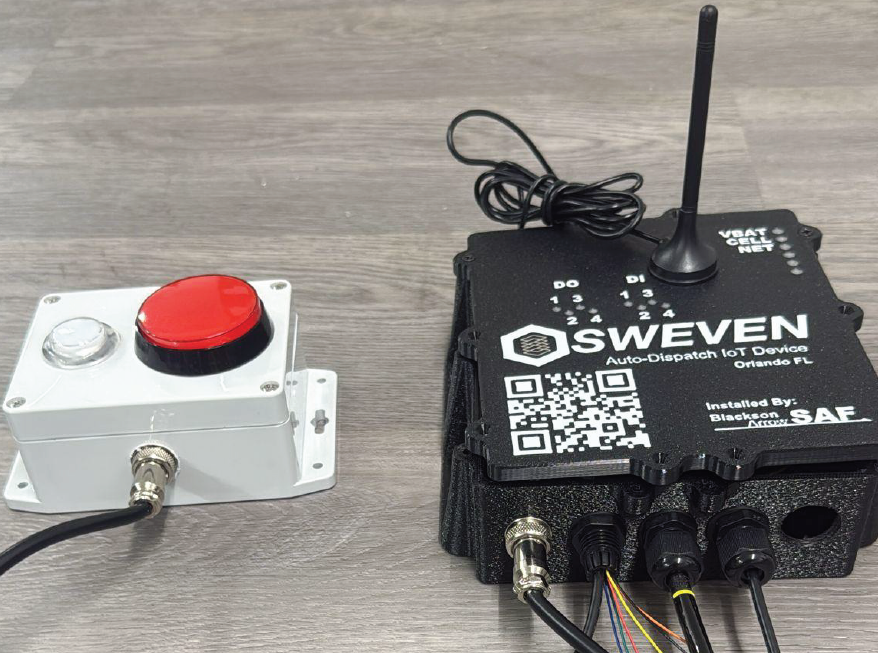
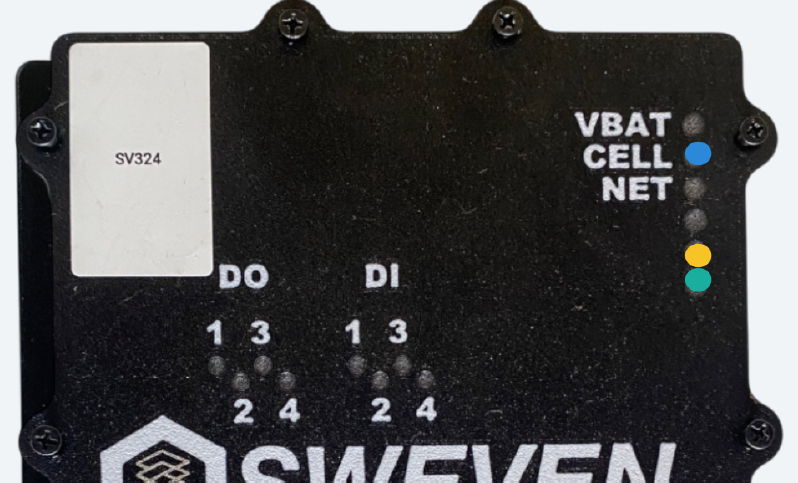
1. Inspect the black box LEDs
- Make sure all four LEDs are lit.
- You should see at least one LED of each color: blue, yellow, and green.
- If any LED is off or a color is missing, note which color is missing.
- If any of the LEDs are red, note their position starting from top to bottom.
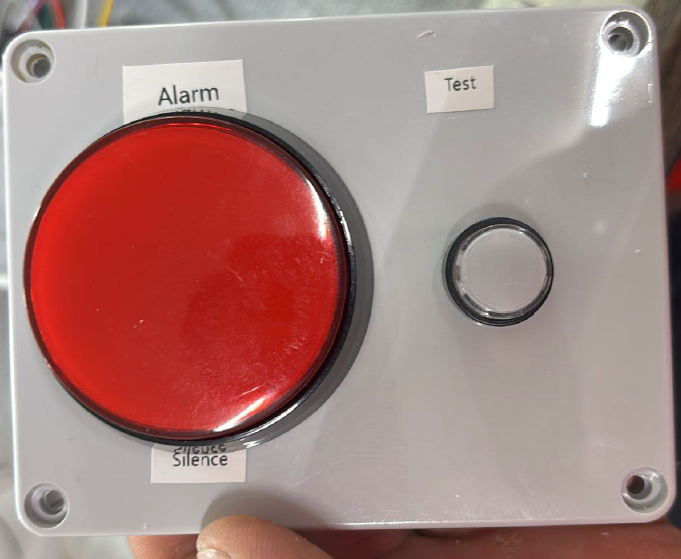
2. Test the Alarm Box Buttons
- White “Test” button: press it—it must light up and trigger a sound.
- Red button: check for cracks or looseness; it should feel solid and move smoothly.
3. Verify Dashboard Connection
- Open your device’s Dashboard in the app or browser.
- Confirm the device shows as Online.
- Ensure live data (readings, status) are appearing.
- Check that the last update timestamp is current.
4. Log Your Findings
- Record any issues (e.g. “Blue LED off,” “Test button didn’t sound,” “No data on Dashboard”).
- Send these details to your support team for next steps.