Introduction & Overview
The To-Do Manager is a powerful new feature designed to help you stay organized and never miss important tasks. Within the To-Do Manager, the Reminders feature allows you to create, manage, and track time-sensitive tasks directly from your work orders, ensuring nothing falls through the cracks.
Key Benefits:
- Never forget important follow-ups with clients or vendors
- Create reminders directly from work order notes with just a few clicks
- Visual calendar view to see your upcoming tasks at a glance
- Customizable notifications via email, push, or SMS
- Seamless integration with your existing workflow
Availability: Currently available for Sweven SaaS Owner users. Coming soon to the Sweven Marketplace App!
Getting Started
Accessing the To-Do Manager
Method 1: From Notifications Panel
- Click the notifications icon in the top header
- Click «See all» to navigate to the full To-Do Manager
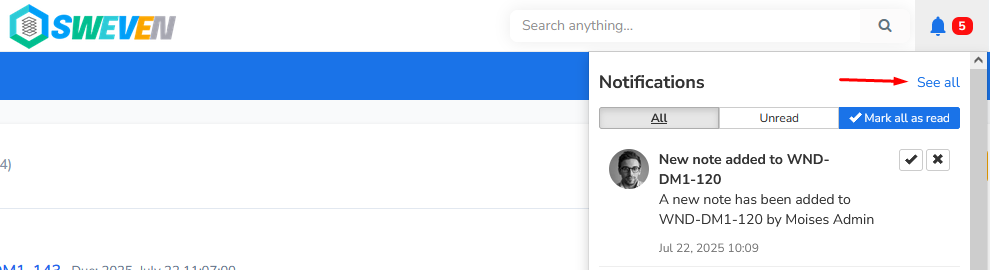
Method 2: Direct URL Access Navigate directly to: https://app.swevenbpm.com/ToDo-Manager
Understanding the Interface
The ToDo Manager sidebar includes:
- 🔔 Reminders – Manage all your time-based tasks
- 📅 Calendar – Visual calendar view of your reminders
- ⚙️ Settings – Configure notification preferences
- 🔖 Saved Items – Quick access to saved information
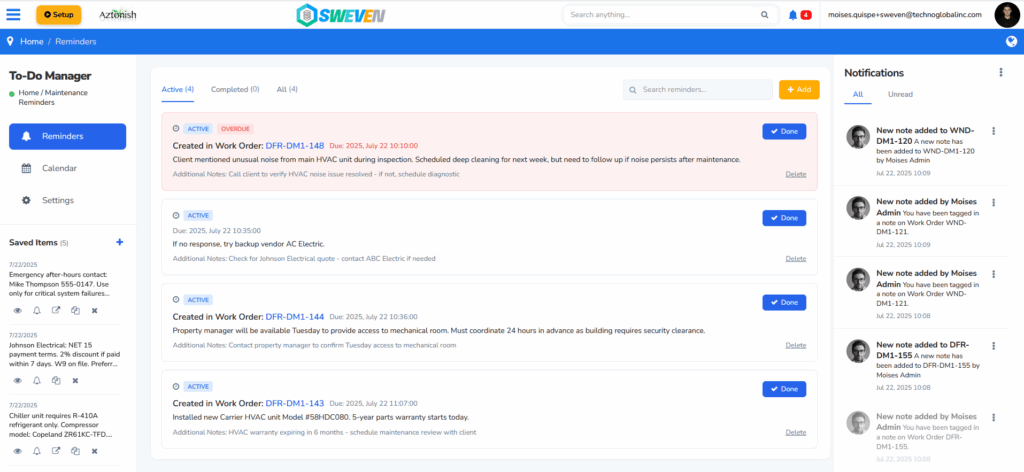
Reminders Panel Overview
Main Tabs
The Reminders panel features three main tabs:
Active Tab Current reminders awaiting action
Completed Tab Finished reminders
All Tab Complete history of all reminders
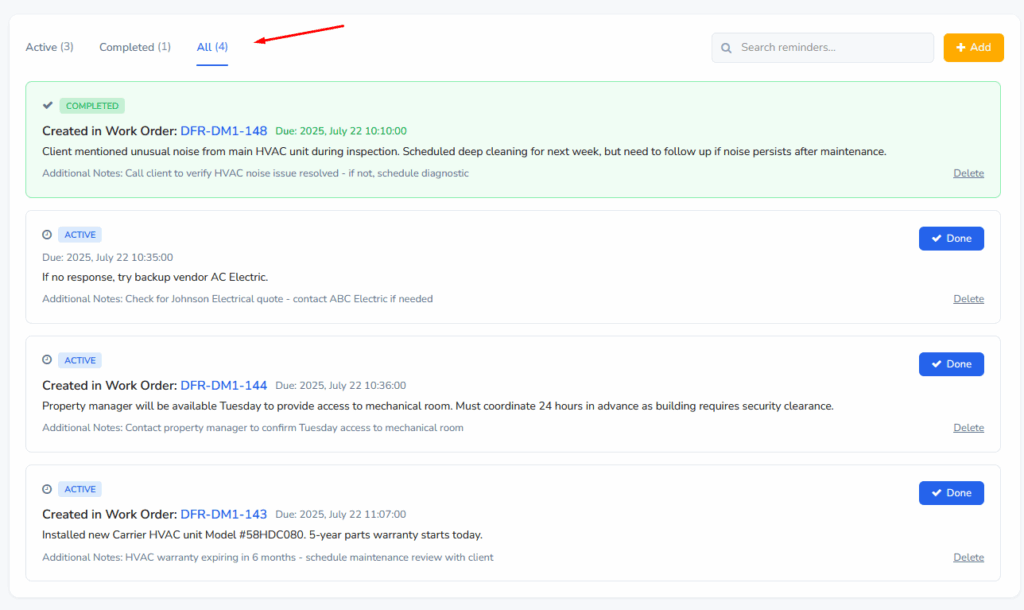
Reminder Status Indicators
- 🟢 ACTIVE – Reminder is current and awaiting action
- 🔴 OVERDUE – Reminder date has passed – requires immediate attention
- ✅ Completed – Task has been marked as finished
Creating Reminders – Method 1
From Work Order Notes (Recommended)
This is the most powerful way to create reminders as it maintains context with your original work.
Step-by-Step Process:
Step 1: Navigate to any work order and go to the Notes section
Step 2: Select any text within a note that you want to be reminded about
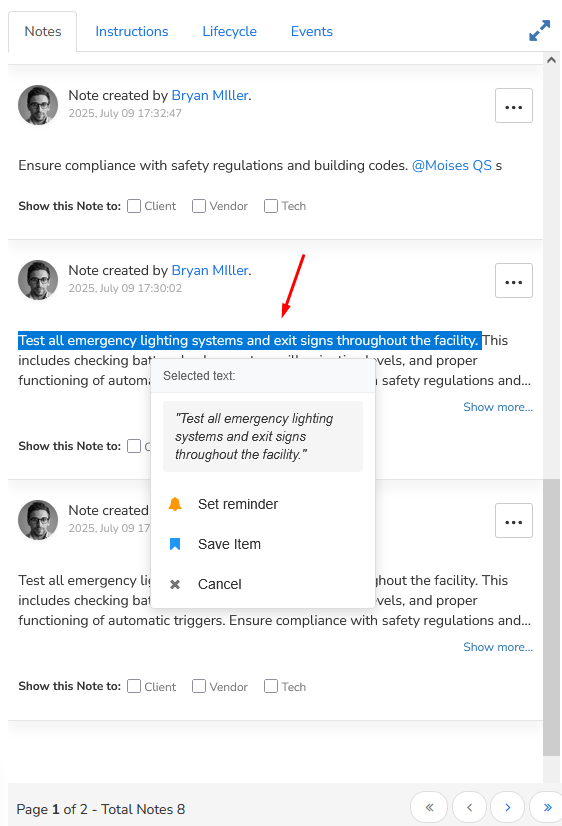
Step 3: Right-click or wait for the context menu to appear automatically
Step 4: Click «Set reminder» from the context menu
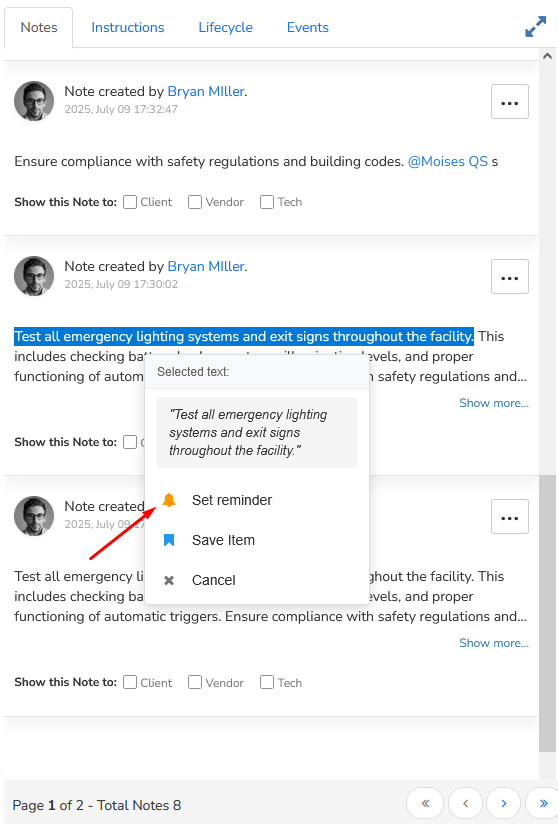
Creating Reminders – Configuration
Reminder Configuration Modal
Step 5: Configure your reminder in the modal that opens:
Date & Time Setting
- Set specific date and time for the reminder
- Use the date/time picker for precision
Quick Options Available:
- 30 minutes – For immediate follow-ups
- 1 hour – For same-day tasks
- Tomorrow – For next business day
- Next week – For longer-term tasks
Optional Reminder Note Add additional context or instructions
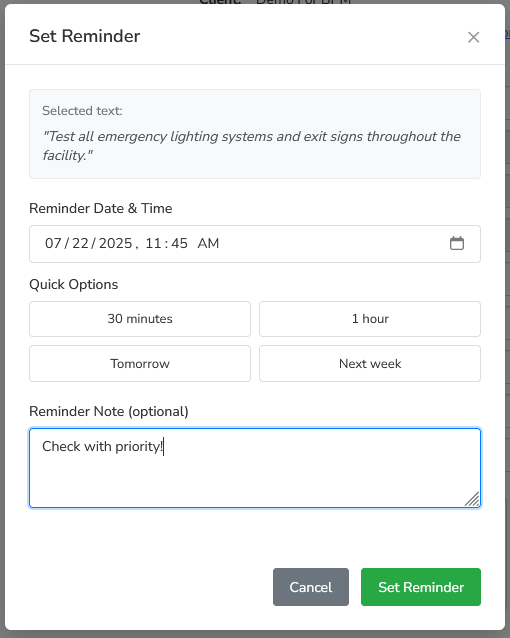
Step 6: Set reminder
Alternative Creation Methods
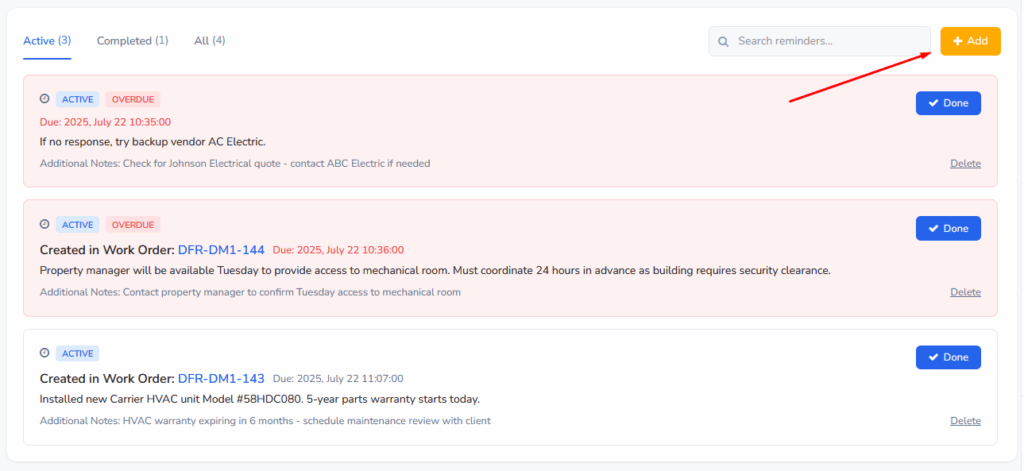
Method 2: Direct Creation from Reminders Panel
Quick Creation Process:
- Click the «Add» button in the Reminders panel
- Fill in the reminder details manually
- Set your desired date and time
- Save the reminder
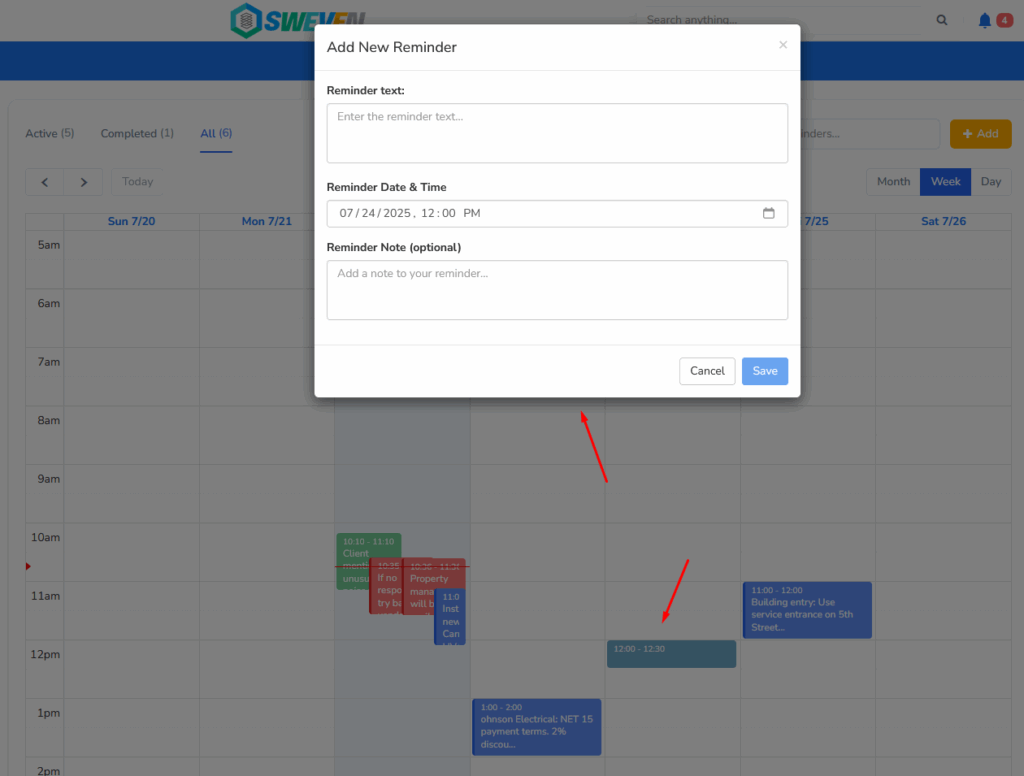
Method 3: From Calendar View
Calendar Creation:
- Navigate to the Calendar view from the sidebar
- Click on any date/time slot where you want to create a reminder
- Fill in the reminder details
- Save to add it to your calendar
Managing Your Reminders
Taking Action on Reminders
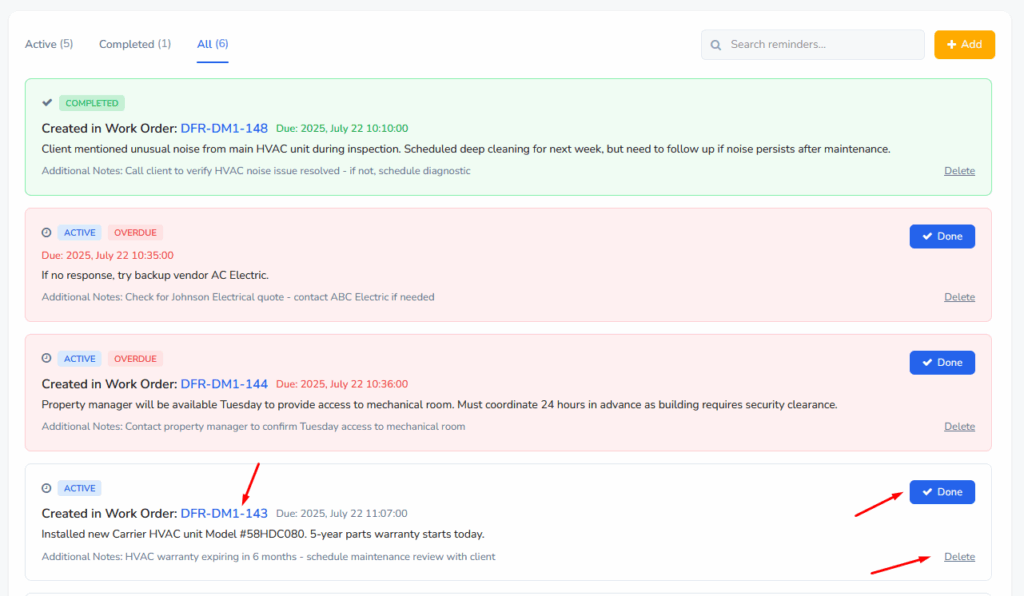
For each reminder, you can perform these actions:
✅ Mark as Complete
- Click the checkmark to mark a reminder as done
- Completed reminders move to the «Completed» tab
🗑️ Delete
- Remove reminders you no longer need
- This action cannot be undone
🔗 Navigate to Source
- Click the reminder to go directly to the original work order and note
- Perfect for maintaining context when taking action
Organizing Reminders
Your reminders are automatically organized by status:
- Active Reminders: Current tasks awaiting attention
- Overdue Reminders: Highlighted in red when past due date
- Completed Reminders: Tasks marked as finished
Calendar View
Visual Calendar Interface
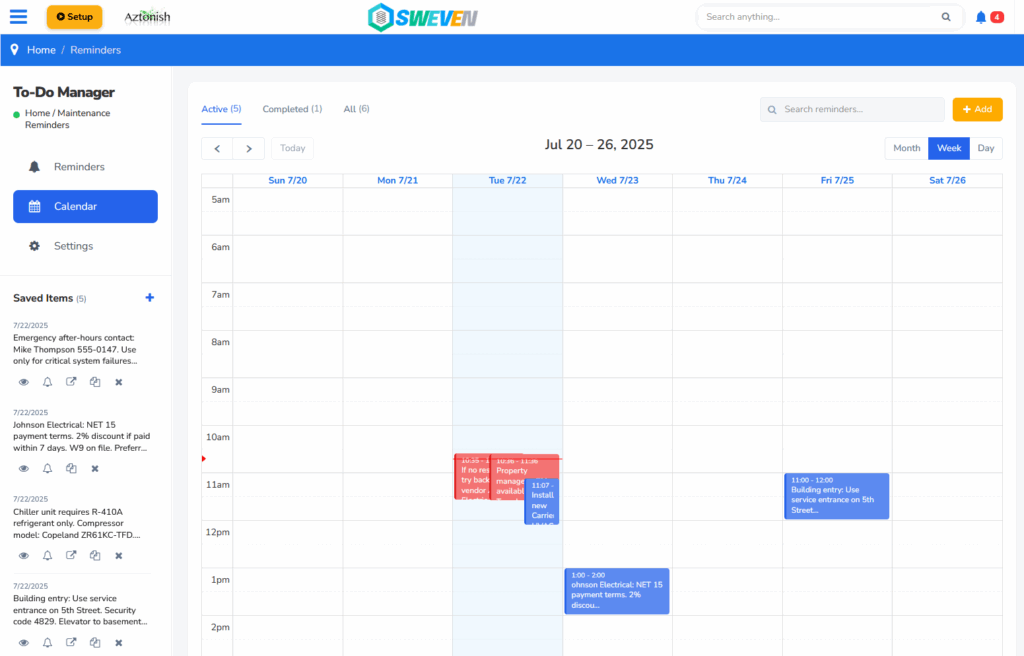
Access the calendar by clicking 📅 Calendar from the ToDo Manager sidebar.
View Options:
- Week View – See reminders for the current week (default)
- Month View – Broader overview of the entire month
- Day View – Detailed view of a single day
Calendar Features:
- Use arrow buttons to move between time periods
- Current time indicated with a red line
- Click any time slot to create new reminders
Benefits of Calendar View:
- Visual overview of your workload
- Easy identification of busy periods
- Quick reminder creation by clicking time slots
Notifications & Settings
Configuring Your Preferences
Access ⚙️ Settings from the sidebar to customize how you receive reminder notifications.
Notification Channels:
📧 Email Notifications
- Receive reminder alerts via email
- Perfect for when you’re away from the system
🔔 Push Notifications
- Browser notifications when logged in
- Immediate alerts while working
📱 SMS Notifications
- Text message alerts (premium feature)
- Critical reminders sent to your phone
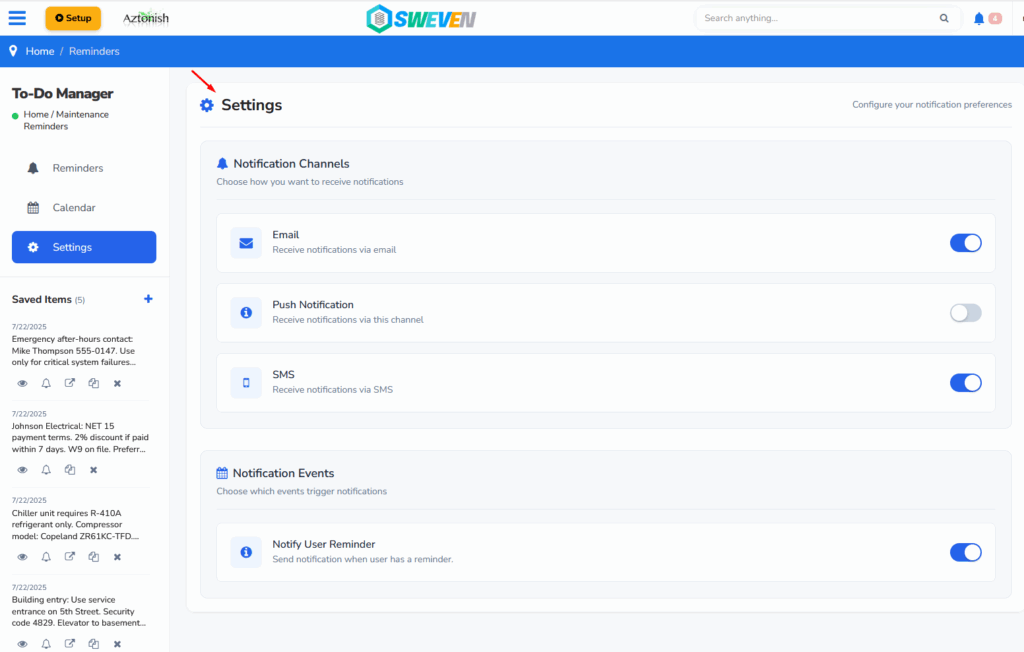
Notification Events:
- Remind User – Get notified when reminders are due
- Toggle each option on/off based on your preferences
- All settings save automatically when you make changes