
When to use: If a SWEVEN page looks outdated, won’t load correctly, or behaves oddly after a deploy.
Steps (desktop Chrome):
1.- Open the affected site page.
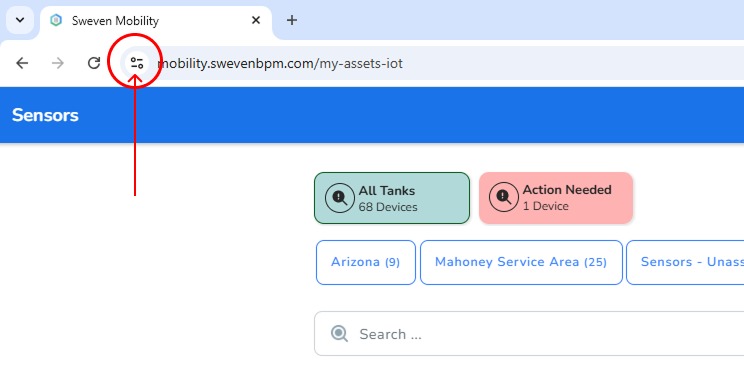
2.- Click the lock icon to the left of the address bar.
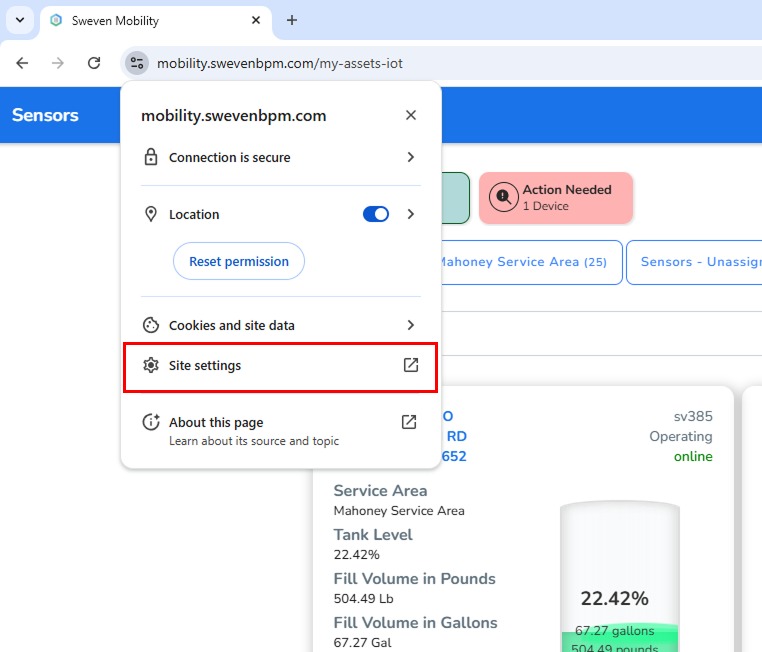
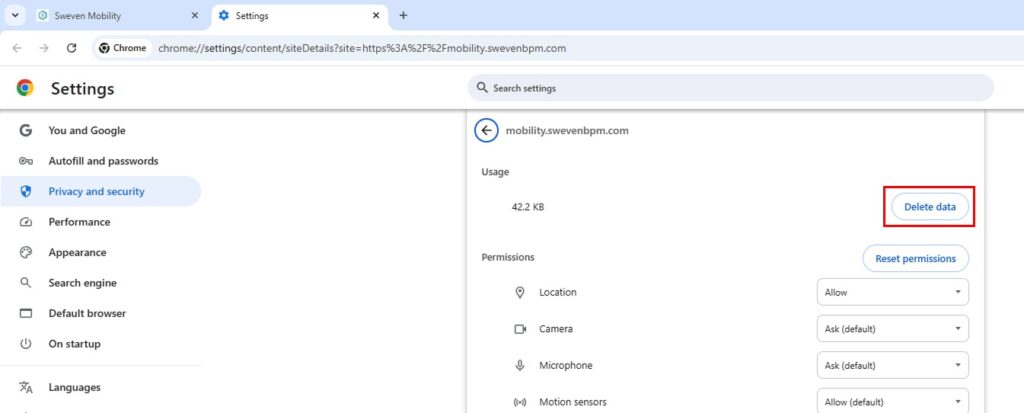
3.- Select Site settings → Delete data
- If you don’t see it, click Reset permissions, then Delete data.
4.- Reload the page.
What this does:
Removes cached files, cookies, and local storage for that site only. You may be signed out and some preferences may reset.
Tip: If the issue persists, try a hard reload (Windows: Ctrl+F5 / macOS: Cmd+Shift+R) after clearing the data.